# Events

# Finding New Events


# Our events calendar

Our events are always listed on the Events page on our website, accessible via the Operations Centre menu.

[![image.png](https://kb.canadaairvirtual.ca/uploads/images/gallery/2024-11/scaled-1680-/VPXimage.png)](https://kb.canadaairvirtual.ca/uploads/images/gallery/2024-11/VPXimage.png)

#### Events Calendar

[![image.png](https://kb.canadaairvirtual.ca/uploads/images/gallery/2024-11/scaled-1680-/xOVimage.png)](https://kb.canadaairvirtual.ca/uploads/images/gallery/2024-11/xOVimage.png)

The events calendar will display all events in a familiar calendar layout. Each event's start and end times are listed below its image in your local timezone.

Click on any event image to view the Event Details.

[![image.png](https://kb.canadaairvirtual.ca/uploads/images/gallery/2024-11/scaled-1680-/I5bimage.png)](https://kb.canadaairvirtual.ca/uploads/images/gallery/2024-11/I5bimage.png)

# Our event types

Our events are always listed on the Events page on our website, accessible via the Operations Centre menu.

[![image.png](https://kb.canadaairvirtual.ca/uploads/images/gallery/2024-11/scaled-1680-/VPXimage.png)](https://kb.canadaairvirtual.ca/uploads/images/gallery/2024-11/VPXimage.png)

#### Events Types

[![image.png](https://kb.canadaairvirtual.ca/uploads/images/gallery/2024-11/scaled-1680-/XE2image.png)](https://kb.canadaairvirtual.ca/uploads/images/gallery/2024-11/XE2image.png)

Underneath the events calendar, you'll see a list of all events grouped by their type.

Click on any event image to view the Event Details.

[![image.png](https://kb.canadaairvirtual.ca/uploads/images/gallery/2024-11/scaled-1680-/I5bimage.png)](https://kb.canadaairvirtual.ca/uploads/images/gallery/2024-11/I5bimage.png)

# Joining Events


# Dispatching events

From an Event Details page, click on the green Dispatch button to dispatch the event flight and make it available in smartCARS 3.

[![image.png](https://kb.canadaairvirtual.ca/uploads/images/gallery/2024-11/scaled-1680-/RXDimage.png)](https://kb.canadaairvirtual.ca/uploads/images/gallery/2024-11/RXDimage.png)

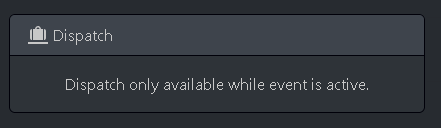
<p class="callout warning">An event flight can only be dispatched after the event start time and before the event ends. Outside of those hours, you will see a notice like this:  
[![image.png](https://kb.canadaairvirtual.ca/uploads/images/gallery/2024-11/scaled-1680-/S0yimage.png)](https://kb.canadaairvirtual.ca/uploads/images/gallery/2024-11/S0yimage.png)</p>
<p class="callout info">You can also [dispatch an event directly in smartCARS 3](https://kb.canadaairvirtual.ca/books/smartcars-3/page/dispatching-an-event).</p>

# Participating in Discord

We invite all pilots to join the event in our Discord server to socialize with other Canada Air pilots while flying.

[![image.png](https://kb.canadaairvirtual.ca/uploads/images/gallery/2024-11/scaled-1680-/cxkimage.png)](https://kb.canadaairvirtual.ca/uploads/images/gallery/2024-11/cxkimage.png)

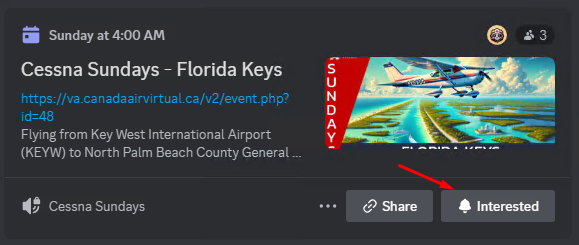
For convenience, we've added a **Join Discord Event** button to each event detail page. Click it to be taken to the event in Discord, where you can add a reminder for yourself to join the voice channel when the event starts.

[![image.png](https://kb.canadaairvirtual.ca/uploads/images/gallery/2024-11/scaled-1680-/ZKfimage.png)](https://kb.canadaairvirtual.ca/uploads/images/gallery/2024-11/ZKfimage.png)
<p class="callout warning">Please practice proper microphone discipline while participating in an event flight in Discord. While we do not always fly on online networks, we highly encourage you to configure your microphone settings to Push-To-Talk mode, or ensure you mute Discord appropriately when you speak to ATC or your wife and pets.</p>

# Finding your dispatched event in smartCARS 3

First, ensure you dispatched the event flight on the website. You should see a message like this after clicking the green Dispatch button.

[![image.png](https://kb.canadaairvirtual.ca/uploads/images/gallery/2024-11/scaled-1680-/7Csimage.png)](https://kb.canadaairvirtual.ca/uploads/images/gallery/2024-11/7Csimage.png)

Then, open smartCARS 3 and visit the Flight Centre. You should see the tour leg as a bid near the bottom of the list. Look for the flight number and ensure it matches the tour leg's flight number.

[![image.png](https://kb.canadaairvirtual.ca/uploads/images/gallery/2024-11/scaled-1680-/yXTimage.png)](https://kb.canadaairvirtual.ca/uploads/images/gallery/2024-11/yXTimage.png)
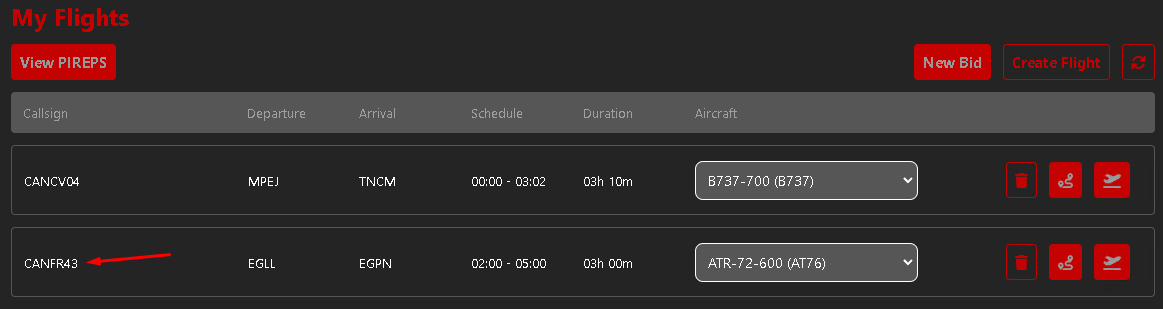
If the flight doesn't appear, try refreshing the Flight Centre.

[![image.png](https://kb.canadaairvirtual.ca/uploads/images/gallery/2024-11/scaled-1680-/en2image.png)](https://kb.canadaairvirtual.ca/uploads/images/gallery/2024-11/en2image.png)

<p class="callout info">For more details on the Flight Centre, consult our [smartCARS 3 guide](https://kb.canadaairvirtual.ca/books/smartcars-3).</p>

# Verify your event participation is being tracked properly

While flying an event flight, you can double-check that your flight is being tracked properly by checking the [Live Flights](https://va.canadaairvirtual.ca/live_flights.php) page on the website.

[![image.png](https://kb.canadaairvirtual.ca/uploads/images/gallery/2024-11/scaled-1680-/3YZimage.png)](https://kb.canadaairvirtual.ca/uploads/images/gallery/2024-11/3YZimage.png)
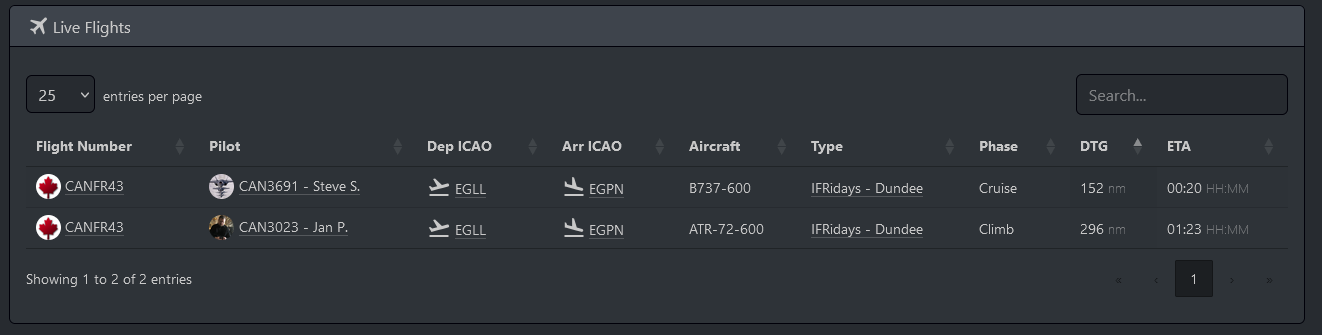
Pay close attention to the **Type** column in the table. It should refer to the event you are flying.

If it does not, then something went wrong during the dispatch or the flight tracking inside smartCARS 3 that caused it to lose the connection to the event.