FsACARS Guide
These are instructions on how to utilize FsACARS.
- What is FsACARS?
- Requirements
- Setting up FsACARS
- Tracking a Flight with FsACARS
- Submitting a PIREP with FsACARS
- Known Issues or Limitations
What is FsACARS?
FsACARS is an alternate ACARS application that Canada Air Virtual may issue to some pilots with specific needs. Typically, this would be pilots who are still using Windows 7, which is no longer supported by smartCARS 3.
Access to FsACARS is on a per-pilot basis and only granted in rare occasions.
Requirements
The following are required to run FsACARS:
Setting up FsACARS
To set up FsACARS, follow these steps:
- Download the Canada Air Virtual version of FsACARS from https://www.canadaairvirtual.ca/fsacars/fsacars_4.2.0.zip
- Extract the contents of the zip file to a location on your PC, such as your Documents folder
- Launch fsacars.exe
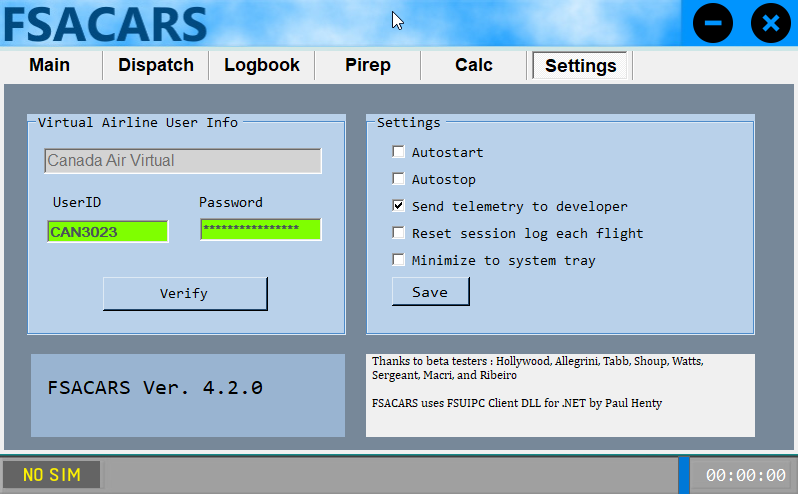
- Go to the Settings tab and enter your Canada Air Virtual pilot ID and password

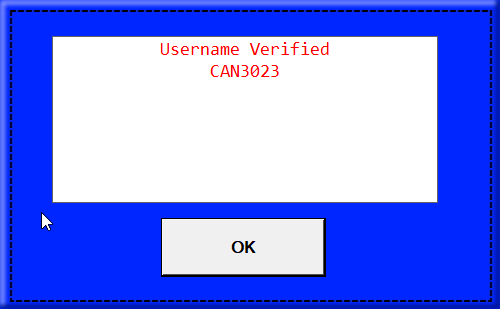
- Click the Verify button. You should see a successful result.

Tracking a Flight with FsACARS
Here's how to begin tracking a flight with FsACARS:
- Dispatch your desired flight from the website, either as a charter, tour, event, or scheduled flight
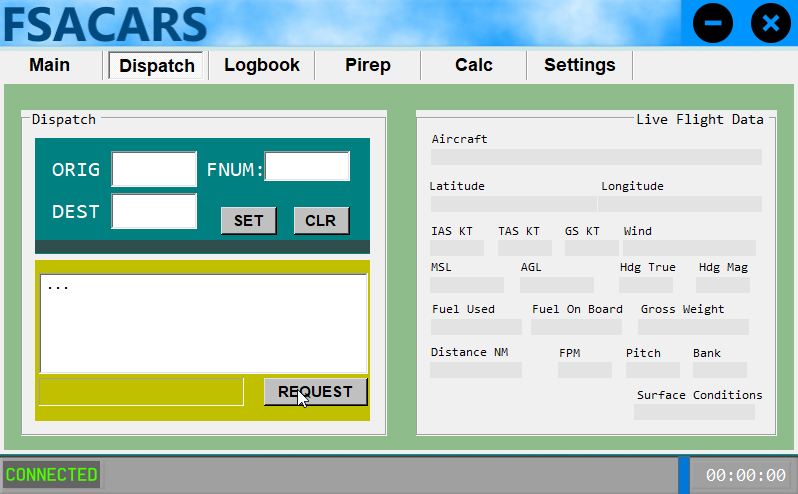
- Launch FsACARS and go to the Dispatch tab

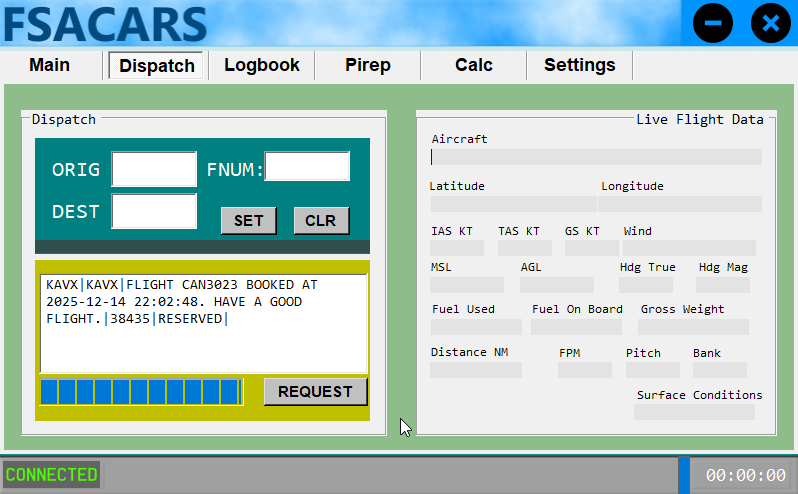
- Click the Request button. This will load your most recently dispatched flight from the Canada Air Virtual website.

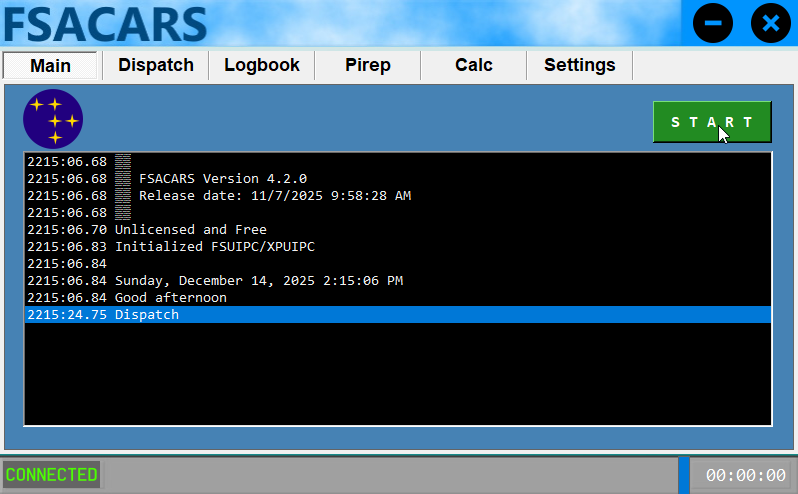
- Switch to the Main tab and click the Start button once you're ready to start tracking your flight.

- The Main or Dispatch tabs are excellent for monitoring your tracking status during your flight. The Dispatch screen, in particular, will show you live flight data. You should also start seeing your flight live on the Canada Air Virtual website, as well as in tools such as Little Nav Map.
Submitting a PIREP with FsACARS
Once you've landed and shut off your engines, you will need to submit your PIREP to the Canada Air Virtual website. To do this, follow these steps:
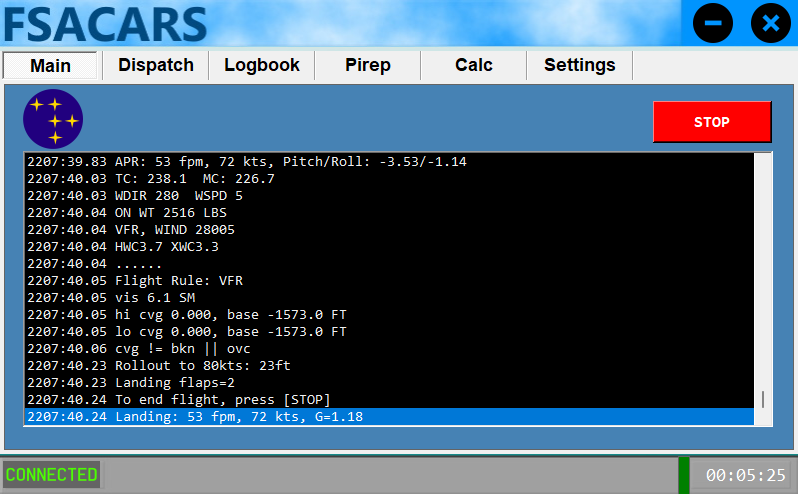
- On the Main tab, review the log messages, and if satisfied, click the Stop button.

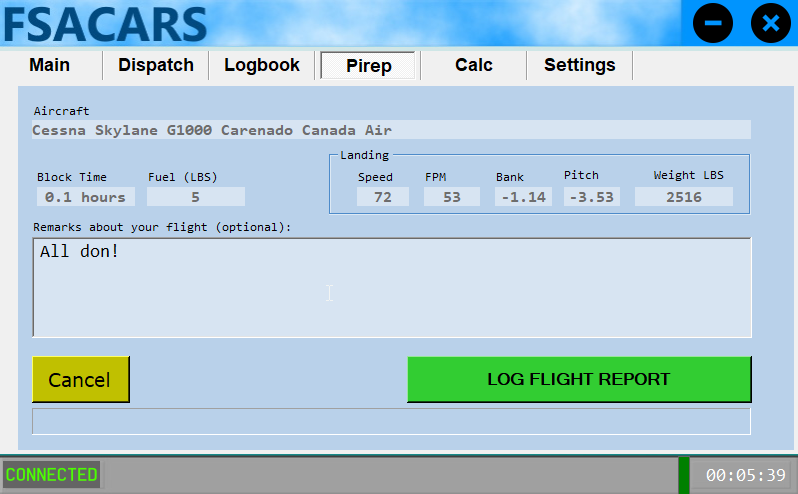
- Once clicked, you will be taken to the Pirep tab automatically and see an overview of your flight data.

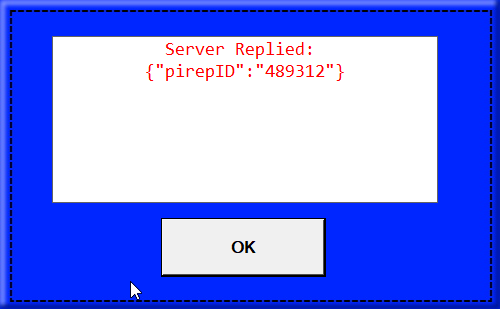
- You can enter any additional remarks at this time and then click Log Flight Report to submit your pirep. Assuming all the data passes validation, it will automatically be approved by our system.

Known Issues or Limitations
The following are known issues or limitations when using FsACARS:
- Distance remaining and Time remaining are unavailable
- Aircraft used may not be accurate until Pirep is submitted
- It is possible to accidentally create additional dispatched flights if you're not using the Dispatch tab properly
- The Canada Air Virtual website assumes that you will be flying in Microsoft Flight Simulator X, because FsACARS does not tell us what simulator you're using