# Integration with Third-Party Tools
# Setting up SimBrief
smartCARS 3 supports SimBrief integration via the use of an optional plugin. Follow these steps to install and configure it.
#### Install SimBrief Plugin
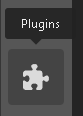
Go to the **Plugins** icon in the left side bar.
[](https://kb.canadaairvirtual.ca/uploads/images/gallery/2024-11/jJwimage.png)
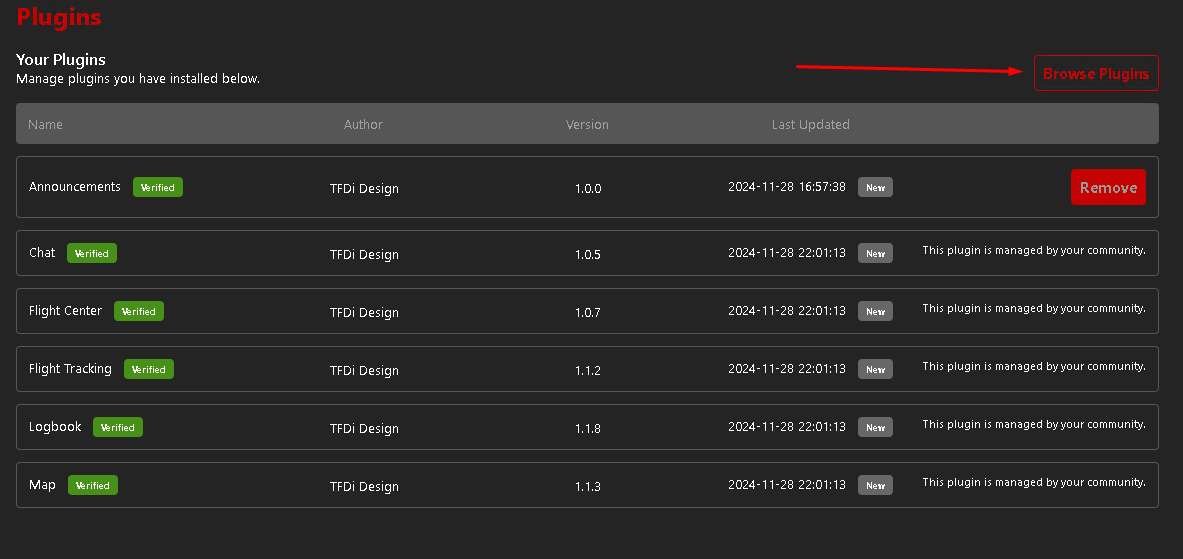
Click the **Browse Plugins** button in the top right.
[](https://kb.canadaairvirtual.ca/uploads/images/gallery/2024-11/cIpimage.png)
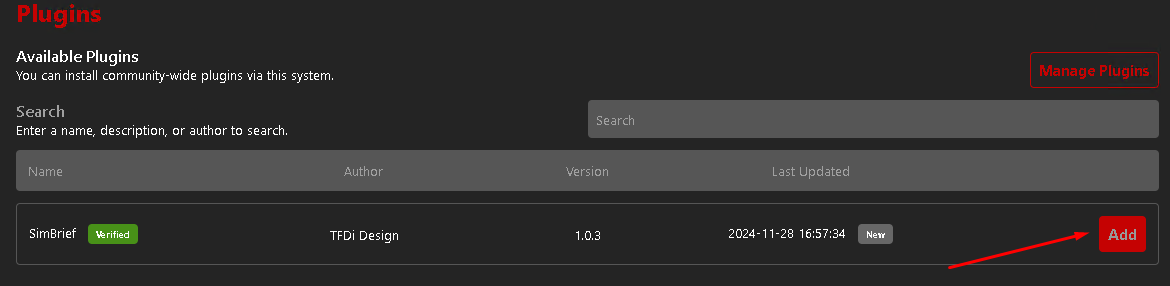
Find the SimBrief plugin and click the **Add** button.
[](https://kb.canadaairvirtual.ca/uploads/images/gallery/2024-11/Scrimage.png)
Restart smartCARS 3 for the plugin to activate
#### Configure the SimBrief plugin
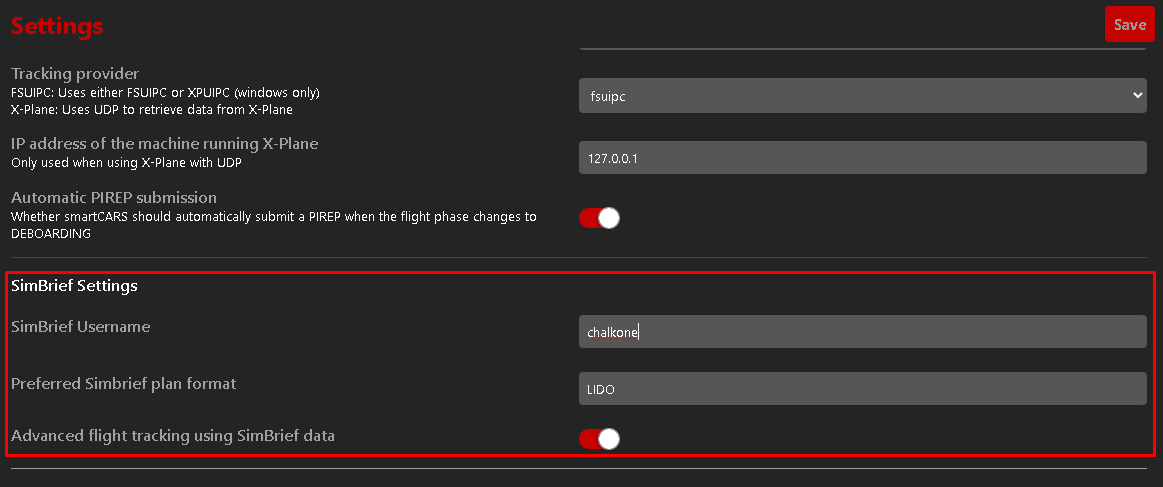
Go to the **Settings** and fill out the new SimBrief settings.
[](https://kb.canadaairvirtual.ca/uploads/images/gallery/2024-11/gM0image.png)
You can find your SimBrief Username in the [SimBrief Account Settings](https://dispatch.simbrief.com/account) in the "Your Navigraph Account" section under "Alias (Username)". [](https://kb.canadaairvirtual.ca/uploads/images/gallery/2024-11/cluimage.png)