**This is expected and nothing to worry about! Simply click Yes to proceed.**
Canada Air has developed several custom plugins, the **Flight Center** and the **Live Flights** plugin. Anytime there is an update to those, you may see this message.Note, there is currently a bug with smartCARS 3 where you will receive this message on every launch. Simply click Yes.
# What is this TFDi Design Login about? The very first screen that you see upon launching smartCARS 3 is a login screen for a TFDi Design account. [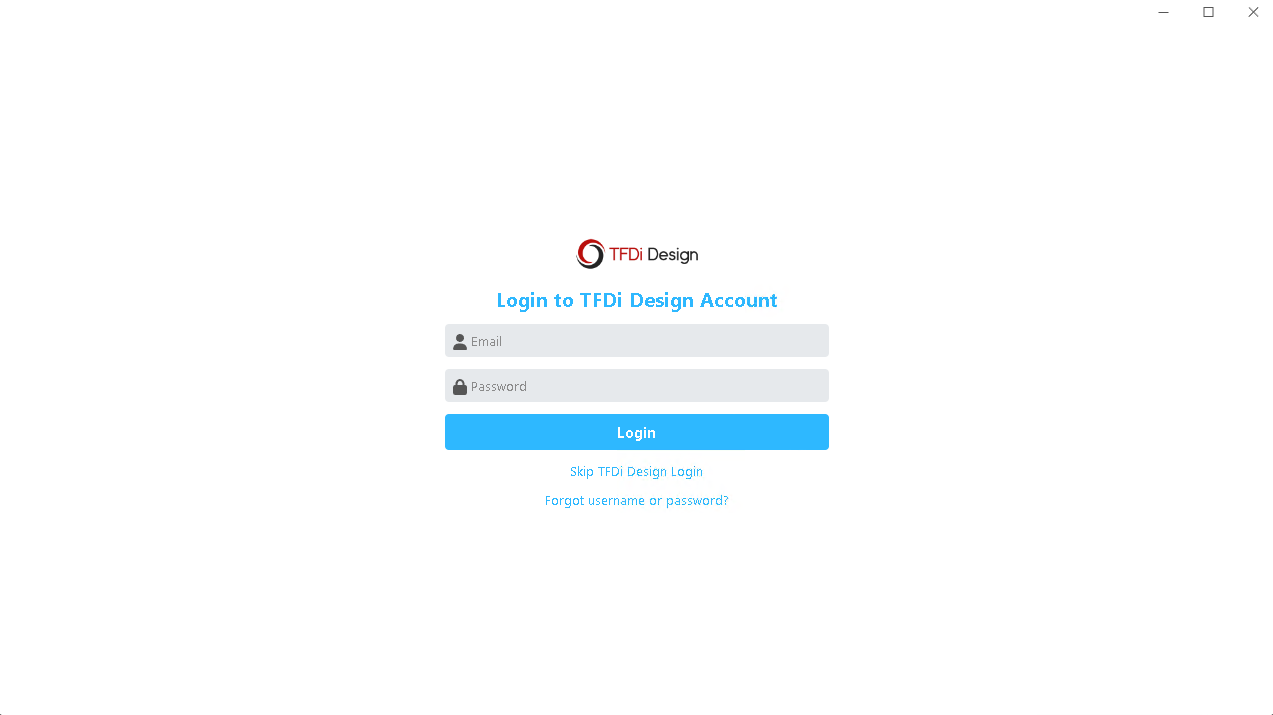](https://kb.canadaairvirtual.ca/uploads/images/gallery/2024-11/BpHimage.png)**This is entirely optional and not required for your Canada Air Virtual flights!**
Here are some potential benefits to creating a TFDi Design account: - It's the only way to not be asked to log into a TFDi Design account on each launch of smartCARS 3 - Your flight will appear on the integrated map - You then have the option to upgrade to a smartCARS 3 Pro account. More details at [https://tfdidesign.com/smartCARS3.php](https://tfdidesign.com/smartCARS3.php) If you don't have a TFDi Design account, click **Skip TFDi Design Login**. [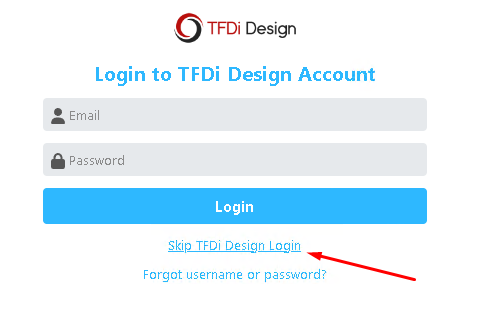](https://kb.canadaairvirtual.ca/uploads/images/gallery/2024-11/yhiimage.png) # Connecting to Canada Air Virtual The first time you connect, you will be asked if you want to fly "On my Own" or "With a Community". Choose "With a (another) Community". [](https://kb.canadaairvirtual.ca/uploads/images/gallery/2024-11/er7image.png) Simply click on the Canada Air Virtual logo in the list of airlines, or use the search box to search for "Canada Air" and select it. [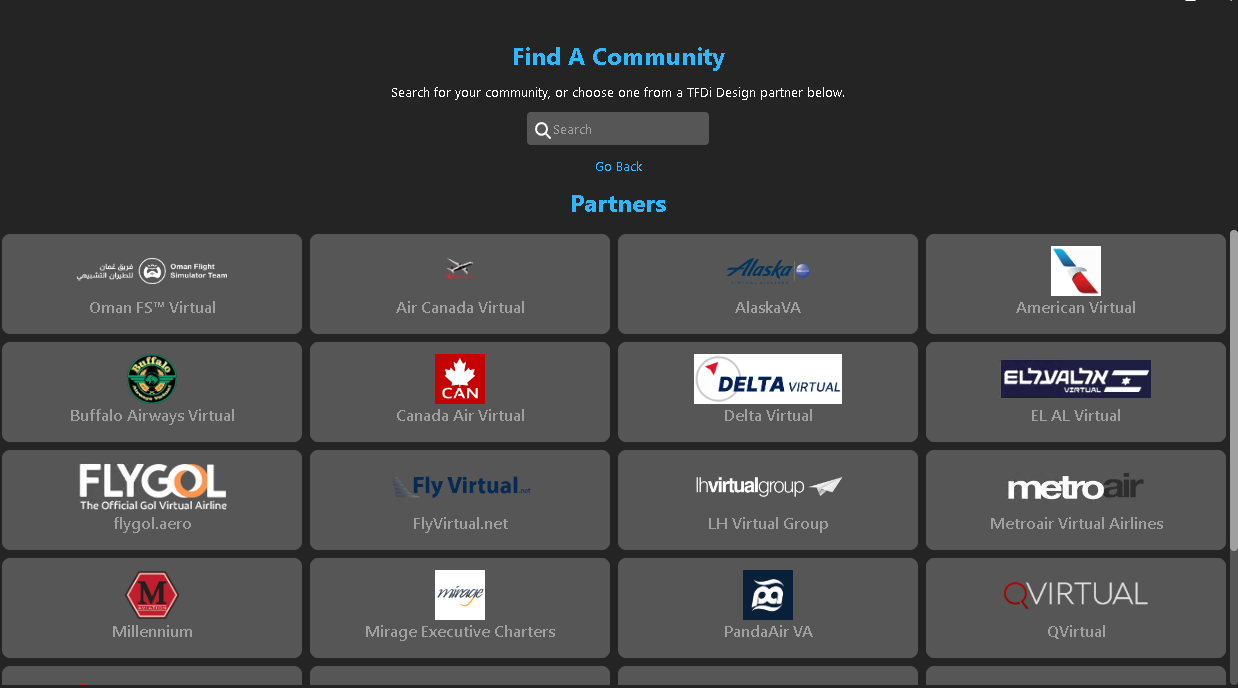](https://kb.canadaairvirtual.ca/uploads/images/gallery/2025-01/somimage.png) You'll then be presented with the login screen.Be careful not to accidentally select Air Canada Virtual!
# Logging into your account Provide your credentials in the form of your email address or callsign (i.e. **CAN1001**) and password. This is the same password that you use to log in at [https://va.canadaairvirtual.ca](https://va.canadaairvirtual.ca). [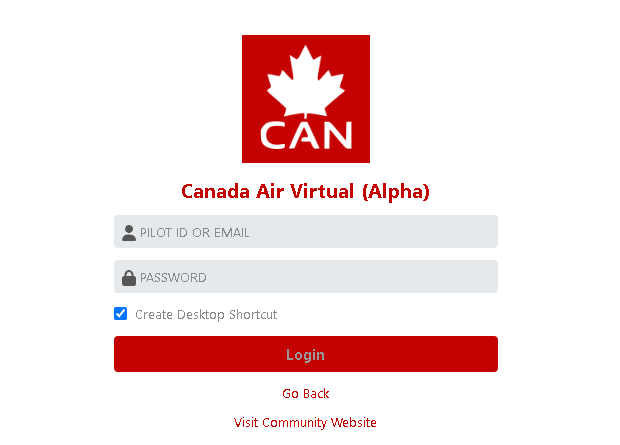](https://kb.canadaairvirtual.ca/uploads/images/gallery/2024-11/0j4image.png) We suggest you leave the "Create Desktop Shortcut" checkbox checked. This will create a nice looking shortcut for "Canada Air Virtual" on your desktop. [](https://kb.canadaairvirtual.ca/uploads/images/gallery/2024-11/VnDimage.png) # Understanding the dashboard Once logged in, this is what your dashboard in smartCARS 3 looks like. [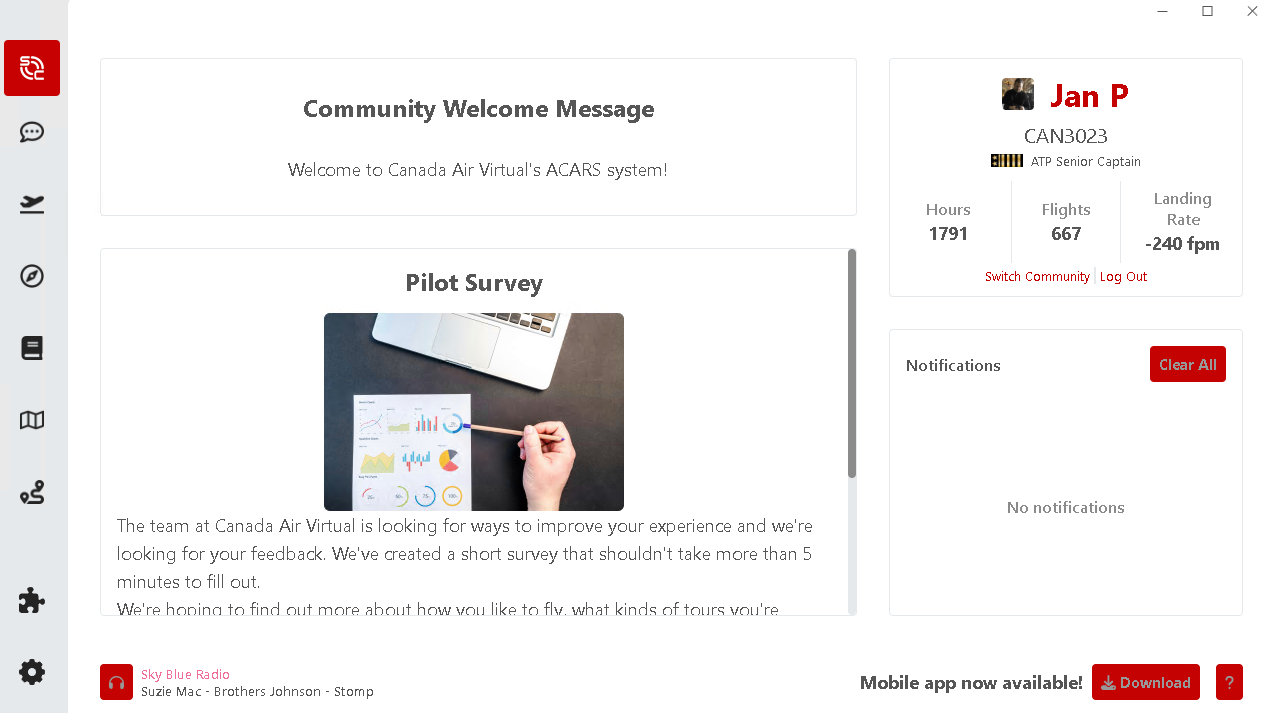](https://kb.canadaairvirtual.ca/uploads/images/gallery/2024-11/gIcimage.png)Note: you may not have one of the icons on the right side until you install the [Simbrief](https://kb.canadaairvirtual.ca/search?term=%5BSimbrief%5D) plugin, should you so desire.
# Configuring settings & plugins The icon in the bottom left of the sidebar is the Settings icon: [](https://kb.canadaairvirtual.ca/uploads/images/gallery/2024-11/VVDimage.png) This is where you can configure various functions of smartCARS 3 to your liking. [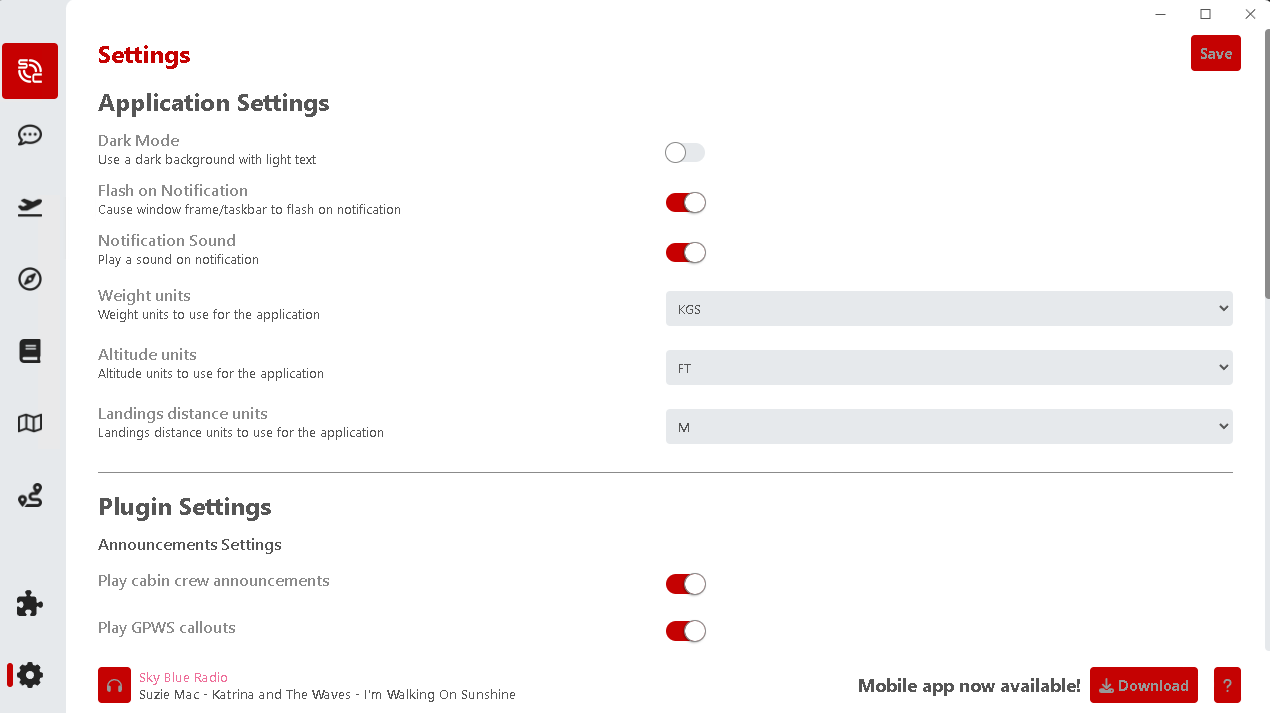](https://kb.canadaairvirtual.ca/uploads/images/gallery/2024-11/58Simage.png) Some settings worth noting are: - **Dark Mode** - **Flight Tracking Settings** - Automatic PIREP submission (recommended ON) - **SimBrief Settings** (if [plugin](https://kb.canadaairvirtual.ca/search?term=%5BSimbrief%5D) enabled)Be sure to click the **Save** button in the top right to save your settings! [](https://kb.canadaairvirtual.ca/uploads/images/gallery/2024-11/5ZIimage.png)