You must be logged into the website to see your progress on tours!
[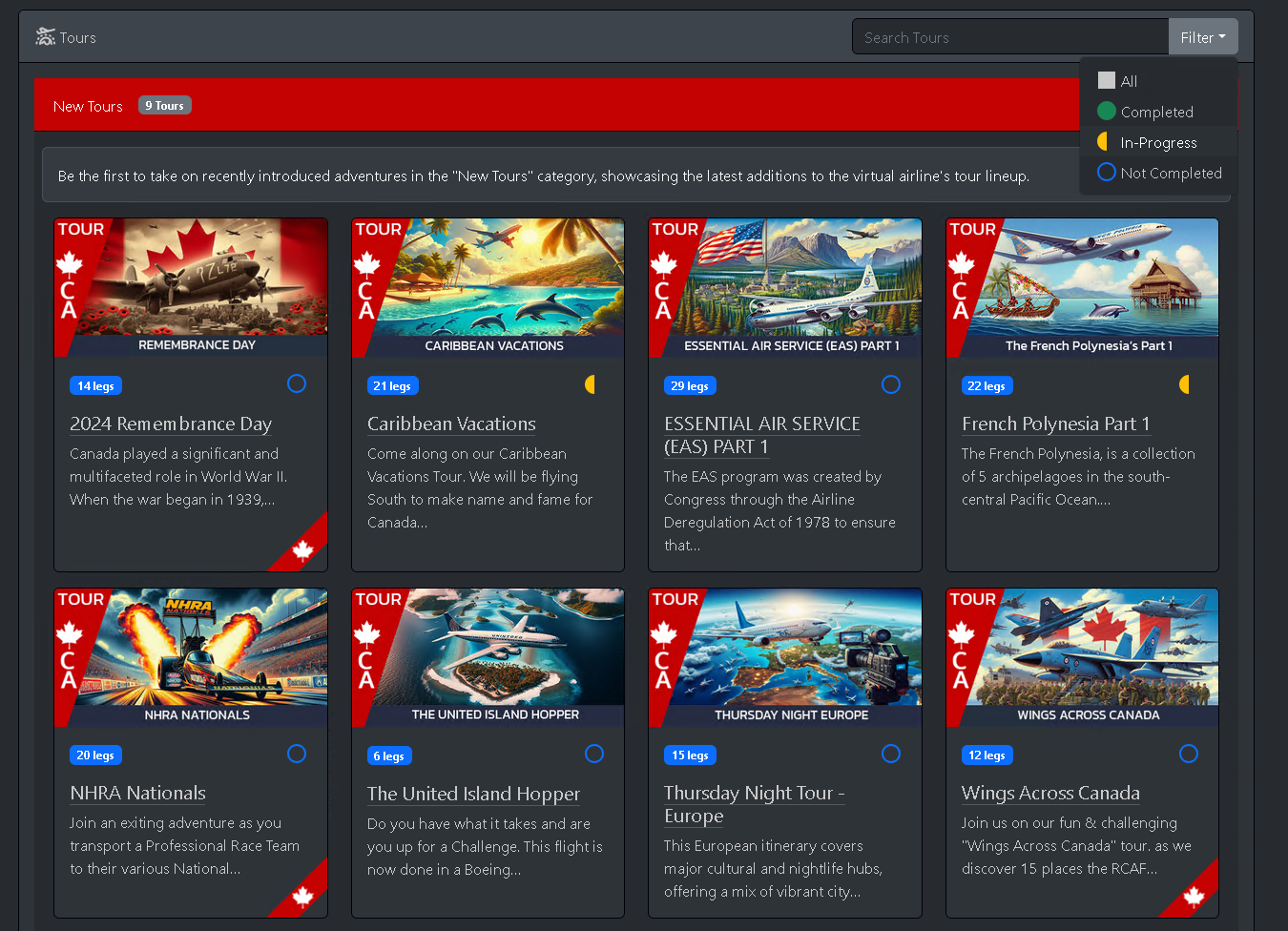](https://kb.canadaairvirtual.ca/uploads/images/gallery/2024-11/Wppimage.png) #### Tour Details Simply click on the tour you'd like to see more details about. [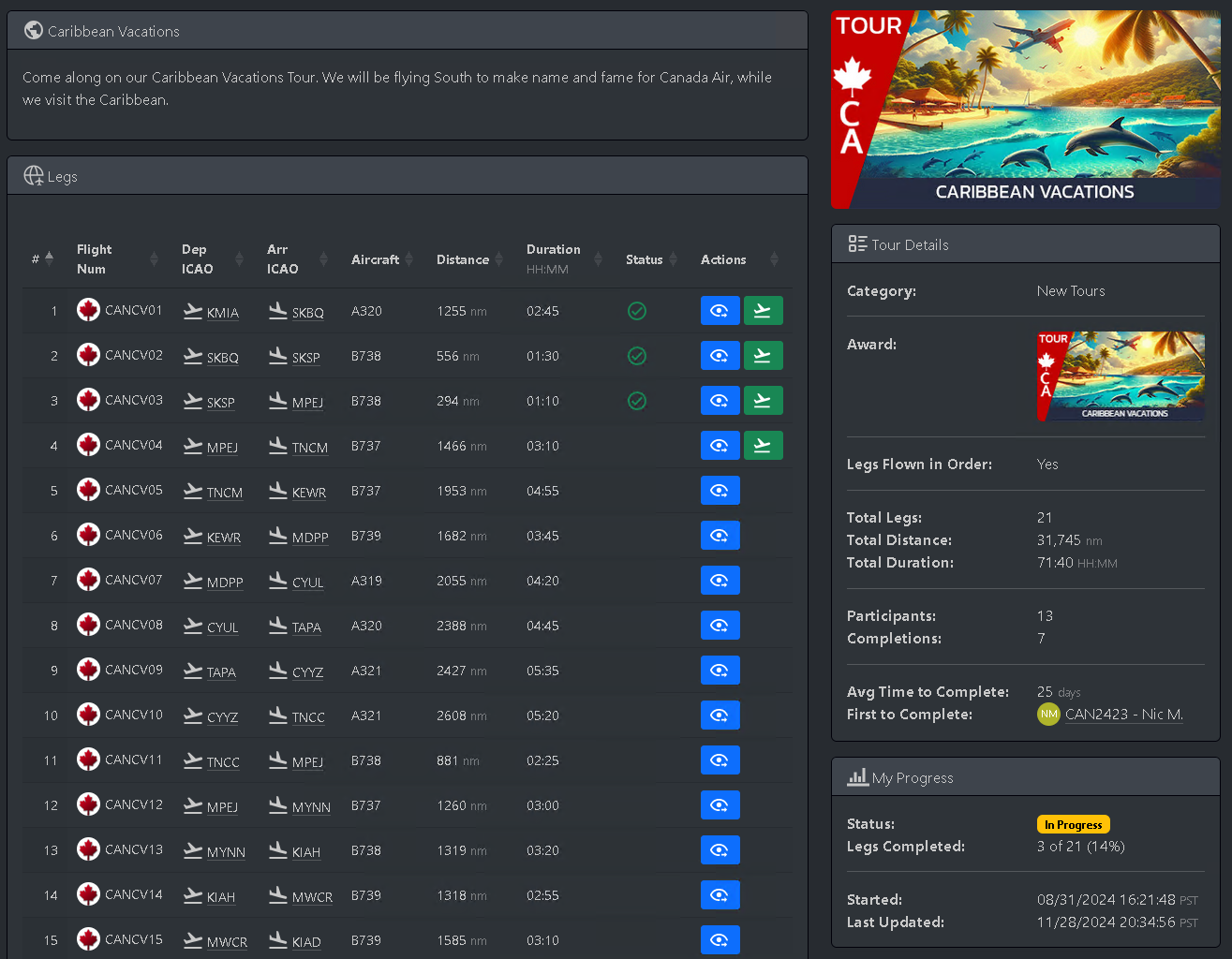](https://kb.canadaairvirtual.ca/uploads/images/gallery/2024-11/RI0image.png) The Tour Details page shows a detailed description of the tour, including details for each of its legs, participants, and overall statistics for the tour. From this screen, you can view more details of an individual leg, or dispatch it, if the leg is available to be flown. [](https://kb.canadaairvirtual.ca/uploads/images/gallery/2024-11/LLkimage.png) # Checking your tour progress The Tour Details page will show you which legs you've flown so far. In the screenshot below, you'll see that I've flown the first 3 legs of this tour so far. [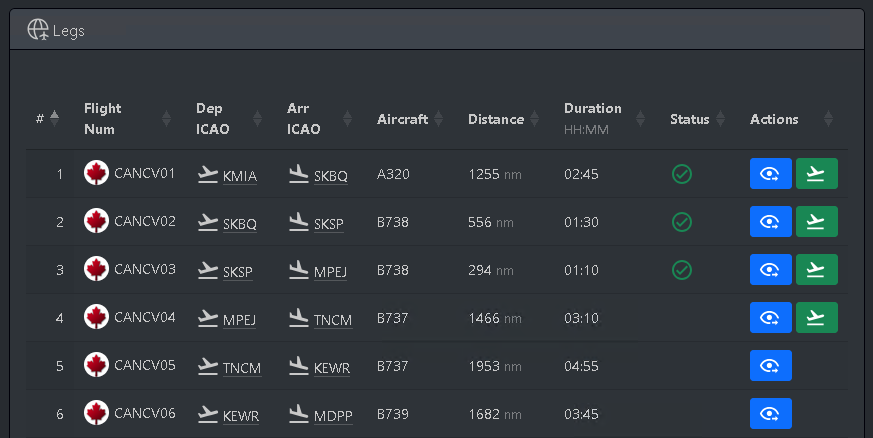](https://kb.canadaairvirtual.ca/uploads/images/gallery/2024-11/Th1image.png) At the bottom of the Tour Details page, you will see a summary of tour participants, along with their progress. [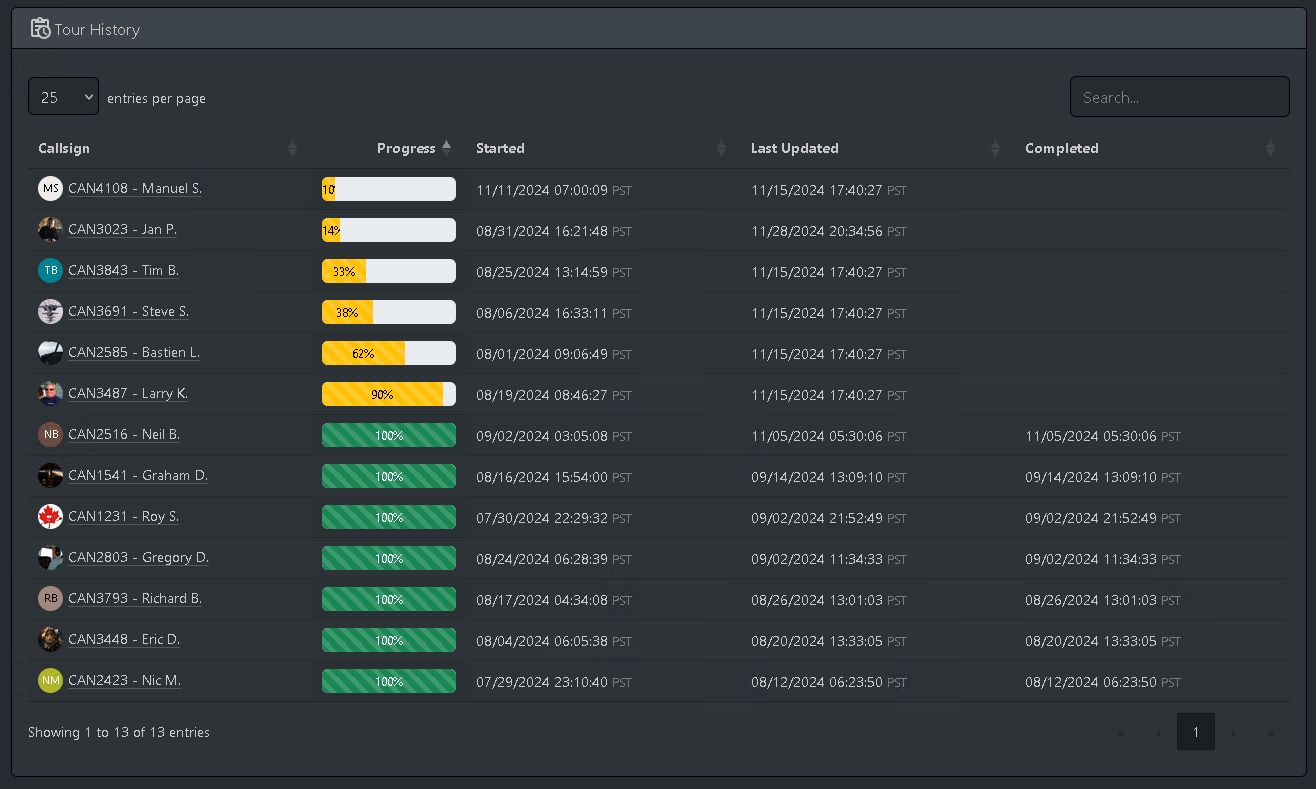](https://kb.canadaairvirtual.ca/uploads/images/gallery/2024-11/af5image.png) You can also visit your [Logbook](https://va.canadaairvirtual.ca/v2/pilot/logbook.php) to see a complete list of all your tour progress. [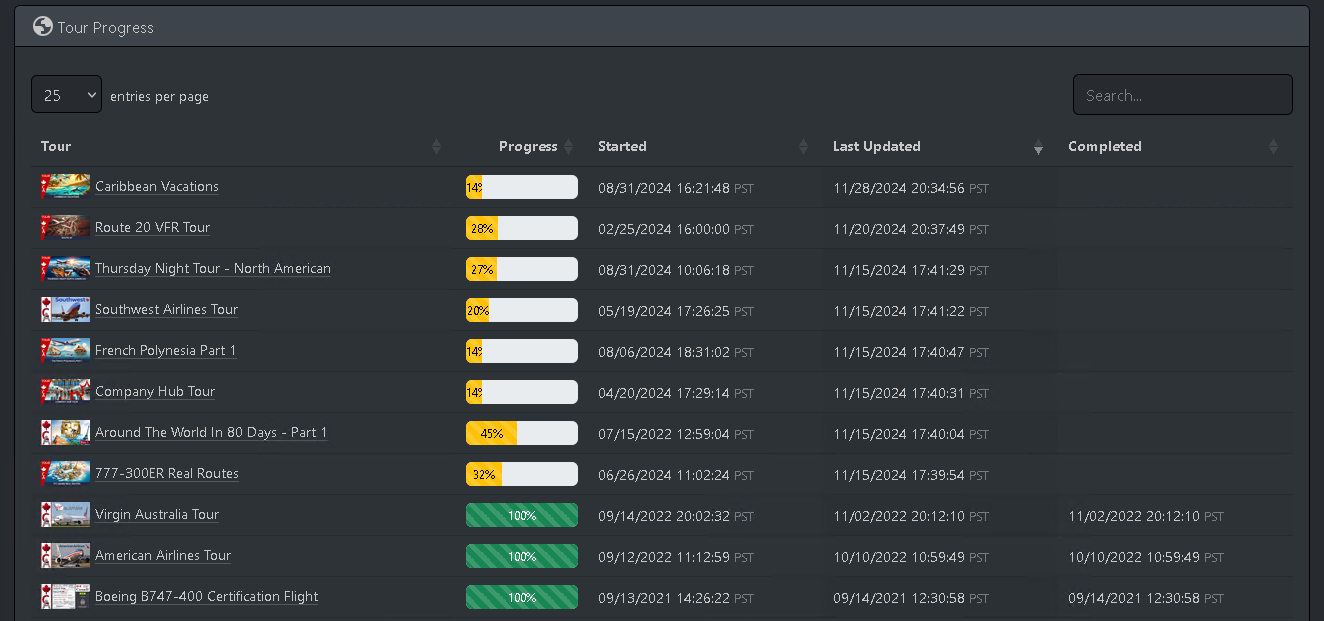](https://kb.canadaairvirtual.ca/uploads/images/gallery/2024-11/PvEimage.png) # Dispatching Tours # Which tour legs can be dispatched? For some tours, the legs must be flown in order. In that case, you will only be able to dispatch a tour leg if you've flown all previous legs in the tour. You can see that this is the case on any Tour Details page. Note how the green Dispatch button is only available for leg 4, and not 5 or 6. This is because I have only flown the first 3 legs of this tour thus far. [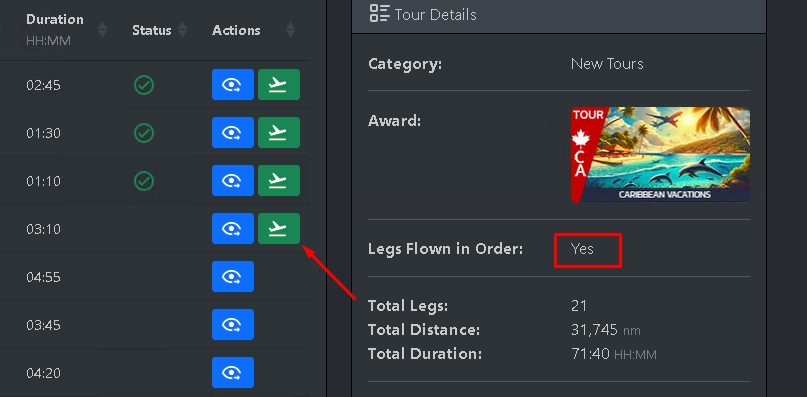](https://kb.canadaairvirtual.ca/uploads/images/gallery/2024-11/tPNimage.png) Tours where the legs are not required to be flown in order will allow you to dispatch any leg at any time.You may also dispatch any previously completed tour leg at any time, though this will not impact your tour progress in any way.
You can also [dispatch a tour leg directly in smartCARS 3](https://kb.canadaairvirtual.ca/books/smartcars-3/page/dispatching-a-tour-leg).
# Finding your dispatched tour leg in smartCARS 3 First, ensure you dispatched the tour leg on the website. You should see a message like this after clicking the green Dispatch button. [](https://kb.canadaairvirtual.ca/uploads/images/gallery/2024-11/iEFimage.png) Then, open smartCARS 3 and visit the Flight Centre. You should see the tour leg as a bid near the bottom of the list. Look for the flight number and ensure it matches the tour leg's flight number. [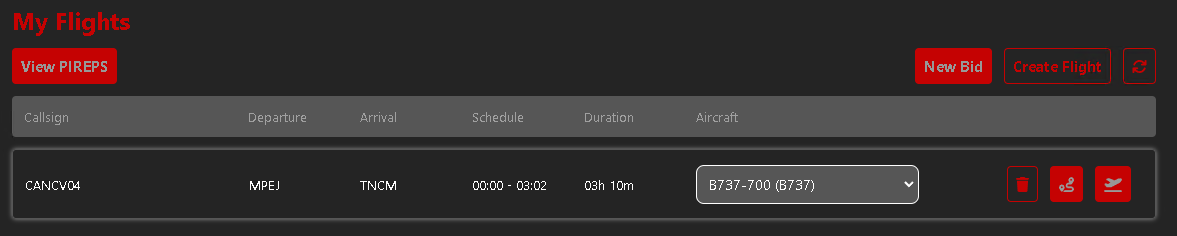](https://kb.canadaairvirtual.ca/uploads/images/gallery/2024-11/Ewuimage.png) If the flight doesn't appear, try refreshing the Flight Centre. [](https://kb.canadaairvirtual.ca/uploads/images/gallery/2024-11/en2image.png)For more details on the Flight Centre, consult our [smartCARS 3 guide](https://kb.canadaairvirtual.ca/books/smartcars-3).
# Verify your tour leg is being tracked properly While flying a tour leg, you can double-check that your flight is being tracked properly by checking the [Live Flights](https://va.canadaairvirtual.ca/live_flights.php) page on the website. [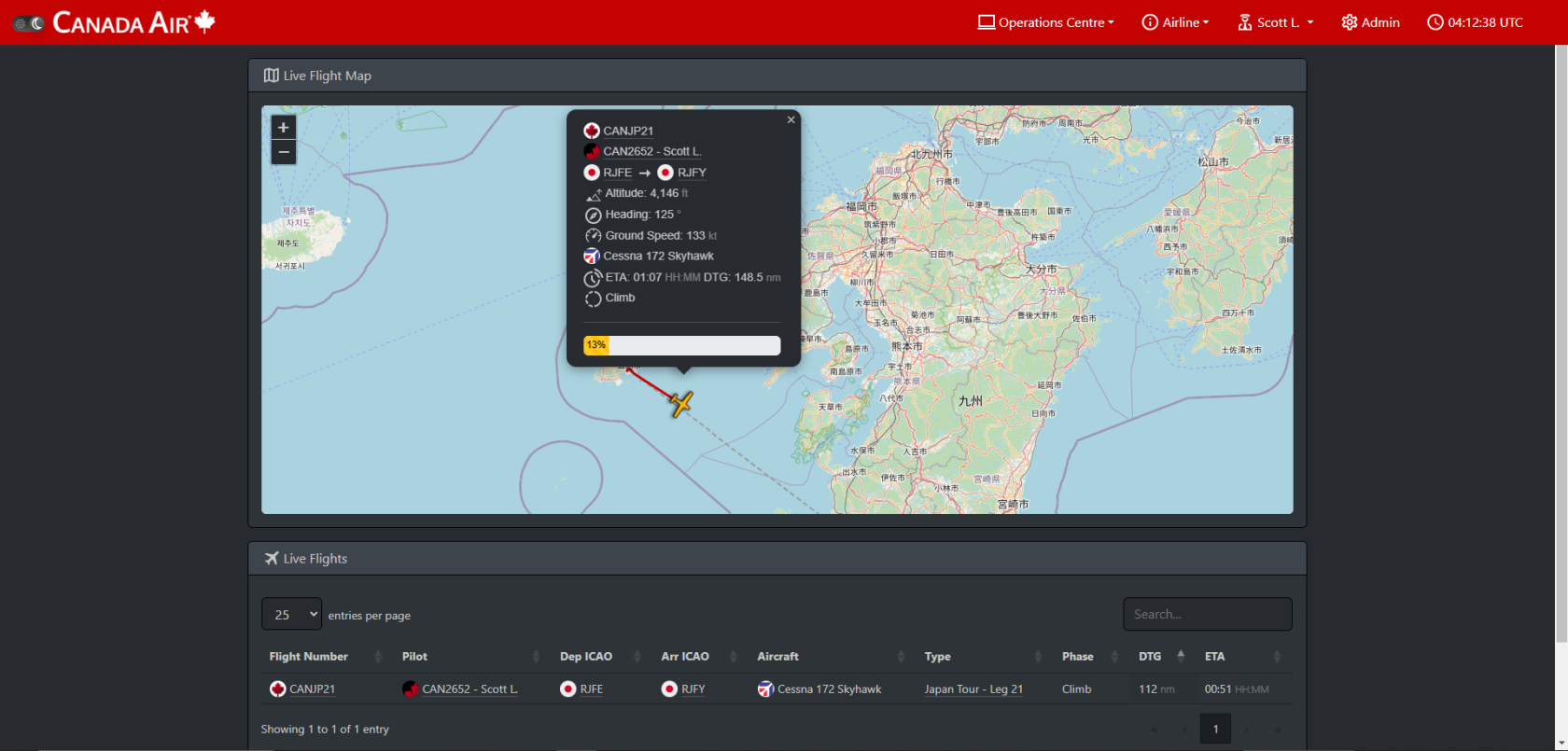](https://kb.canadaairvirtual.ca/uploads/images/gallery/2025-01/DMPimage.png) Pay close attention to the **Type** column in the table. It should refer to the tour and leg you are flying. If it does not, then something went wrong during the dispatch or the flight tracking inside smartCARS 3 that caused it to lose the connection to the tour leg.